



Let’s say you’re working on a design project and you want to work in some legal tender to give it that authentic look. If you do it with some lower denominations, no sweat: scan it up, take a picture or whatever, and edit away. With some denominations and currencies though, it’s not so easy. Photoshop will actually block you from opening the image.
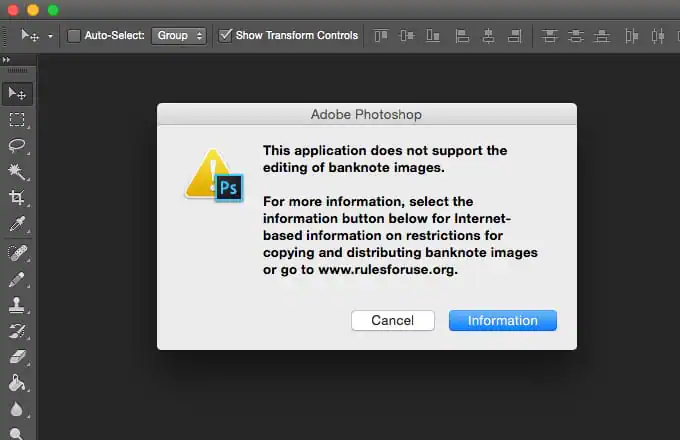 What the what?
Now I get it. Adobe doesn’t want us using their software to counterfeit bills, which makes sense. (It’d create a ton of bad press if all of a sudden people were printing money like crazy all thanks to a Creative Cloud subscription.) But what if you had less nefarious plans? What if you just wanted to make some cool designs either onto the bank notes or using them in a pattern? Well, let’s figure out how to get around the baddies, shall we?
What the what?
Now I get it. Adobe doesn’t want us using their software to counterfeit bills, which makes sense. (It’d create a ton of bad press if all of a sudden people were printing money like crazy all thanks to a Creative Cloud subscription.) But what if you had less nefarious plans? What if you just wanted to make some cool designs either onto the bank notes or using them in a pattern? Well, let’s figure out how to get around the baddies, shall we?
Step 1: Find an Image
After a quick Google search, I found a ton of scanned Canadian currency. A bunch of it has “Specimen” printed on the outside, but we want the legit stuff, so I pulled from the non-labelled models.
 I started off with an older $2 bill, and had no problems opening it up. So next, I tried the $5.
 In an interesting twist, I could open up the original jpeg of the bill in Photoshop, no problem. But when I attempted to open up the screenshot to edit it for this post, it gave me the anti-coutnerfeit message. Weird.
I decided to take it to the next level and go with a $100 bill, which gave me the same message. Let’s check out the workaround.
In an interesting twist, I could open up the original jpeg of the bill in Photoshop, no problem. But when I attempted to open up the screenshot to edit it for this post, it gave me the anti-coutnerfeit message. Weird.
I decided to take it to the next level and go with a $100 bill, which gave me the same message. Let’s check out the workaround.
Step 2: Start In Illustrator, Not Photoshop
First, I opened up the jpeg in Adobe Illustrator.
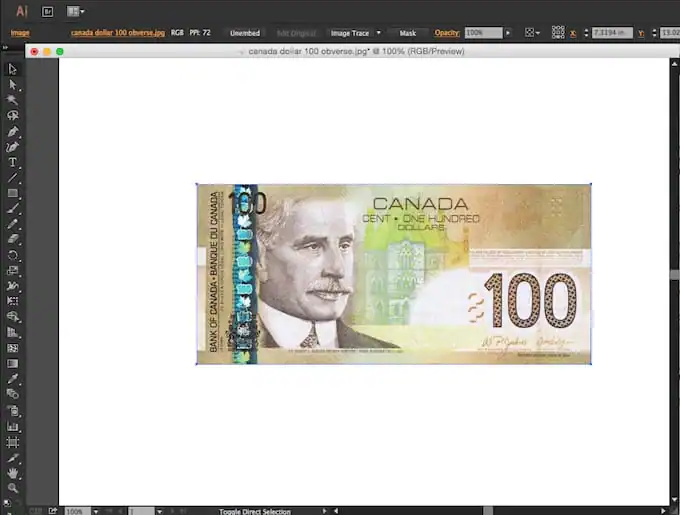 Next, I saved it as an Illustrator file. Then I opened up that file in Photoshop.
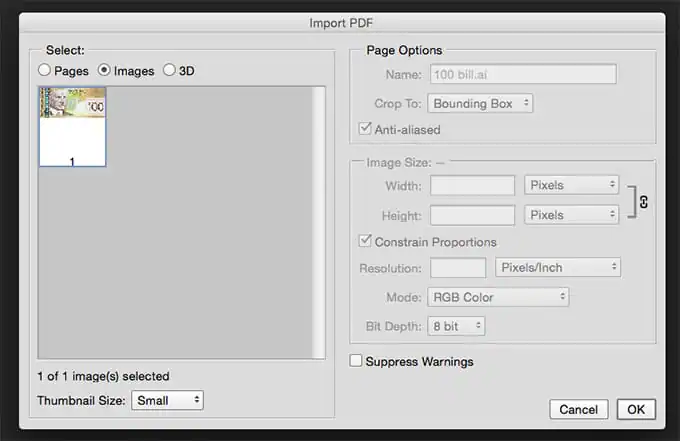 And, just like that, tada!
 Tip: Don’t have Illustrator? No problem. All you need is an app that will open the image and is capable of saving it as a PDF. Preview for Mac is a good alternative.
Use Responsibly
Now remember, we’re not condoning the counterfeiting of money, because that’s highly illegal. That being said, there are legitimate use cases for using money imagery in design. As an example, just look at the header image for this article. We wanted to show a pile of money, but that photo was one that was blocked by Photoshop by default. Using this simple trick, we were able to get the effect that we wanted. Pretty handy! Legal disclaimer: In many countries, there are specific laws governing editing of currency related images. Before you go fiddling with money too much in Photoshop, it’s a good idea to do your research to discover what is and isn’t allowed in your area.
Kevin Whipps is a writer and editor based in Phoenix, Arizona. When he’s not working on one of the many projects in his queue, he’s looking for fun and irreverent things online to share with his friends.
Products Seen In This Post:

Download these worksheets and start practicing with simple instructions and tracing exercises.
Download now!






Hi! My name is Kevin Whipps, and I'm a writer and editor based in Phoenix, Arizona. When I'm not working taking pictures of old cars and trucks, I'm either writing articles for Creative Market or hawking stickers at Whipps Sticker Co.
View More Posts

12 Comments