



Did you ever want to make a super cool flyer that will draw people to your event? Maybe you were hesitant in the past because you didn’t know where to start or you don’t have mad graphic design skills. No problem! Creative Market has a collection of templates from some of the best designers in the industry who have done all of the hard work for you. All you will need to do is download a template, customize it for your fab event, and then enjoy some cocktails with your wonderful party guests. In this guide, we will cover:
- What you will need
- Getting Your Files
- Customizing a Flyer Template with Photoshop
- Helpful Tips Regarding Fonts
- Other Resources
- Find and Download A Flyer Template
What you will need
A Creative Market Flyer template, Photoshop, your own images (if desired), and of course your customized text for your flyer.
Getting Your Files
To get started, browse all of Creative Market’s Flyer templates to find the one that is right for you. Once you have found the perfect template, Click the Buy Now button, followed by the Download Now button.
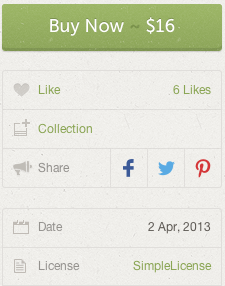

Your purchase has now been downloaded as a zip file. Navigate to the location of your file and unzip your file. Once your files have been unzipped, you are now ready to begin customizing your newly purchased flyer template.
Customizing a Flyer Template with Photoshop
When you open the PSD file in Photoshop, you will find layers, which allow you to easily edit the file. You can do a multitude of things with Photoshop. In this guide, we will cover the three most basic edits you will most likely want to achieve.
Replacing Text
First, select the Horizontal Type Tool  . Find and click on the text you wish to edit and enter the desired text. While you are editing the text, 2 icons will appear on the top toolbar. Click
  to accept your changes or
  to cancel.
Note: You may get a message regarding ´missing fonts’. This simply means you do not have the fonts on your machine. You can follow instructions from the seller, if provided, or use fonts that are already installed on your machine. For additional help, see Helpful Tips Regarding Fonts.
Replacing Images
Find and click on the layer of the flyer that you want to customize in the Layers panel on the right side.
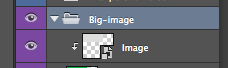
In order to add your own image, you can simply drag and drop in the new image of your choice. Remember to click the Commit button to save all changes.
Note: If your image isn’t quite the right size, you may need to adjust it. Visit Adobe to learn more about Basic Image Editing with Adobe Photoshop.
There are a million different things and a variety of ways you can perform customizations in Photoshop. This guide was intended to help out the beginner user by illustrating some very basic actions to get your flyer ready for print. If this very basic guide hasn’t covered a topic you were looking for, Adobe has some great “Getting Started†tutorials. There is also an entertaining YouTube series you may want to check out called You Suck At Photoshop.
Helpful Tips Regarding Fonts
Some templates may use fonts that are not on your computer and/or are not a part of your downloaded file(s). You can resolve this issue a few different ways.
-
Your template will either come with instructions in the help file regarding how to get the fonts that were used.
-
Visit Creative Market’s font page as well as our guide, How to Install Your New Font In a Few Easy Steps.
-
Use a font that is already installed on your computer. You can change the font on Photoshop in the same way you would in most other programs. Attributes such as font family, style, and color can all be changed from the font type toolbar. You can also find this toolbar from Type > Panels > Character Panel.

Other Resources
Adobe’s Getting Started TutorialsYou Suck At PhotoshopHow to Replace Text in Adobe PhotohopPhotoshop Editing TextPhotoshop / Matching, Replacing, and Mixing ColorsFind and Download A Flyer Template
Creative Market has a pretty amazing selection of Flyers! I’m confident that you will find many to fall in love with!
Download these worksheets and start practicing with simple instructions and tracing exercises.
Download now!







6 Comments