



Our Staff Picked content is a constantly refreshed collection of what the Creative Market teams believes is the absolute best of the recently uploaded products. In this article, we’ll take a look at just what it takes to get your products picked and hopefully get a nice boost in sales.
What is the Staff Picked Section?

Across the site, you’ll see some featured products in a section titled Staff Picks. True to its name, these items are carefully selected by our team, and the selection is refreshed every week.
The benefit here for you as a shop owner is obvious: your item has the opportunity to occupy prime real estate at the top of a heavily trafficked page and our weekly email. The question then becomes, “How do I get my products in the Staff Picked section?”
Step 1: Make Amazing Products
If you want your products to get featured on the site, make sure they’re amazing. Spend your time creating quality, extremely useful design resources that will make someone’s job easier.
Our top creators often invest months of work into a single product. The items they upload have better features, more options, and are simply of a better quality than that of their competitors. When we see a shop owner putting this type of effort into their products, we love to feature them.
Step 2: Create Great Screenshots and Preview Images
Creative Market is a site made by designers for designers, so it makes perfect sense that shopping here is a very visual experience. In short, products with remarkable preview images are showcased front and center: they get Staff Picked, they’re typically chosen for the weekly newsletters, and they get more purchases. Screenshots are your primary form of marketing your product to users browsing the site, and it’s absolutely critical that you go all out and make them as great as possible.
At Least Three Screenshots, Preferably Five

Here’s an extremely important tip to commit to memory: we rarely pick a product with less than three screenshots. We’ll break this rule occasionally for a product that we know is amazing, but it’s definitely a good practice to launch all your products with all five screenshot slots filled.
The Cover Image is Everything
We encourage you to add several screenshots to your product, but among these, the cover image is king. This is the image that is shown across the site on the category, recent, and Staff Picked sections.
Show Off Your Product Well
Your cover image should be as eye-catching and interesting as possible… but then what do you do with the rest of your screenshots? Use these as an opportunity to show off the various benefits and features of your product. Show bonus elements and zoom in on the details. Here are some examples of secondary screenshots that show off the product well.
If you’re looking for some help creating awesome screenshots, Vintage Design Co. sells a product called Product Preview Kit that makes it easy to show off your work in an interesting and attractive way.
Properly Sized and Cropped
One final note on screenshots: make sure they’re the right size. You’d be surprised how many shop owners upload images that get stretched or leave awkward empty space around them. Keep your screenshots at 1820 x 1214 px.

Step 3: Sweat the Small Stuff
Getting the visuals on your product right is only half the battle. When we’re looking for products to feature in the Staff Picked section, we look way beyond the thumbnail and take everything about the product into consideration.
A Good Title and Description
Make sure your title is clear and communicates something about what the product is or does. Carefully fill out the description, being sure to address any questions people might have about what is included. The best descriptions are also excellent sales pitches. They get the reader excited about the product and what they can do with it.

Dustin Lee of Retro Supply Co. gives some excellent advice in his piece on common mistakes people make in their product descriptions.
Metadata
Take the time to make sure all your metadata is filled out properly. Add as many tags as you can and fill out the relevant property information such as file types and supported software.
Fill Out Your Profile
Still haven’t uploaded a profile picture or header image? Then you’re probably not going to get your products into the Staff Picked section. We like to feature products from shops that are committed enough to make their little storefronts personal and interesting.
Step 4: Be Unique
When we see shop owners doing something new that we haven’t seen before, we’re much more likely to pick that item than when we see them mimicking the tactics of others again and again. What works for others probably won’t work as well for you. Find your own niche or style and run with it.
A great example of this tactic is Jessica Johnson, who recently found great success with her “Glam” line of products, which is comprised of some really interesting effects that we hadn’t seen from other shops. We could tell that Jessica went all out and poured her heart into her work, and we rewarded that by featuring her in our emails and Staff Picking her products.
A Note On Photos
The advice above applies to most of the products across the site. One interesting area where you may have trouble applying some of this advice is photography. For instance, you can’t add five screenshots, you just have the one photo! My best advice here is to follow steps three and four above, and more importantly, take incredible, natural photos. We don’t like to feature photos that look overly processed or painfully staged. Natural, genuine photography that doesn’t feel like the crappy stock you see on every other site is our primary goal with photos.
The More You Know…
There you have it, you now have the inside scoop into how to get your products featured prominently on Creative Market. The key takeaway is that shop owners who constantly get their items Staff Picked tend to be those that work hard to make sure all their products not only contain amazing work, but are presented in an enticing and professional way.
Header image created using HANDS – Hand Drawn by BusOne.
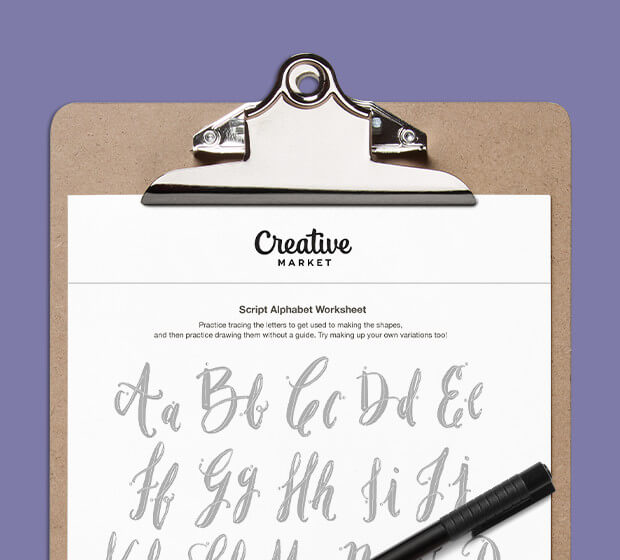
Download these worksheets and start practicing with simple instructions and tracing exercises.
Download now!





47 Comments